|
Here are some questions and problems that people often encounter when using Default Folder X.
Before consulting this list, please check to make sure you are running the latest version, which is Default Folder X 6.1.5. If you need an update, you can get version 6.1.5 using the Download button above. If you have a problem that is not addressed here or feel a question should be here but isn't, please send mail to support@stclairsoft.com
General Questions
Default Folder X is asking for permission to record my screen. Why?
Default Folder X needs screen recording permission because, in some circumstances, it needs to actually select something from a menu in a file dialog in order to perform an action. To hide the menu when it pops up on the screen, Default Folder X takes a screenshot of the file dialog and displays that in front of the dialog for a fraction of a second. This hides the activity of operating the menu behind a temporary "façade".
It also uses an image of a file dialog to determine whether the dialog is running in Dark Mode. It then uses that information to match its own controls to those of the file dialog. (You'd think it could just ask the system for this information, but there's no macOS API available to do so).
This is something that Default Folder X has always done - it's not something new. It's just that newer versions of macOS require that we get your permission. The screenshot is only stored in RAM, never saved to a file, and is destroyed immediately after it is used.
If you want to see this in action, approve Screen Recording so Default Folder X will launch, then immediately go to System Preferences > Security & Privacy > Privacy > Screen Recording and turn it back off. Then bring up an Open dialog in any application (choose File > Open in Safari, for example), navigate to your Downloads folder, and then use the New Folder command to create a new folder. When you click OK to create the folder, watch the file dialog. It'll briefly turn yellow - that's where the screenshot would normally be used, but since you've turned off screen recording, Default Folder X just puts up a yellow window instead.
Default Folder X 6.x is telling me I need to buy an upgrade. What's going on?
If you purchased Default Folder X before March 1, 2023, there is an upgrade fee for version 6.x. The upgrade is $9.95 if you bought your old license after September 1, 2022 and $19.95 if you purchased before then.
Enter your old license number in the General tab of your Default Folder X 6 preferences and it will check and let you know if you need to upgrade. If you no longer have your license number, please use our license number request form to have us look it up for you.
If Default Folder X tells you that you need to upgrade, go to https://www.stclairsoft.com/upgrade/ and make your purchase. You'll need to enter the name, email address or license number from your old license to verify your eligibility for the upgrade.
If you would like to download the last version of Default Folder X 5 (please note that it doesn't support macOS 14 Sonoma or higher) you can get it here: Default Folder X 5.7.8
I have two computers. How many licenses do I need to buy?
Our licenses are "single-user", so you need one per user, not one per computer. You're welcome to use your license on multiple machines as long as you're the sole user of the machines. As long as that's the case, all you need to do is download the latest version of Default Folder X, install it on both computers and enter your license number in both places.
What applications does Default Folder X support?
Default Folder X enhances the Open and Save dialogs in all Carbon and Cocoa applications, so it should appear in all macOS-native applications. It cannot enhance non-native Java applications, however, if they do not use the standard macOS file dialogs.
Can I rename folders in Default Folder X's Favorites menu?
Yes. Just open your Default Folder X preferences, click on the Folders tab, click on Favorites, and then Control-click (or right-click if you have a multi-button mouse) on the Favorite folder you want to rename.
How do I change the order of my Favorites?
Open your Default Folder X preferences, click on the Folders tab, click on Favorites, and then drag the Favorite folders up and down in the list to change their order.
You can also use the utility menu in the lower right corner of the Favorites list to sort them alphabetically or by shortcut.
How do I make Default Folder X display hidden files and folders?
With a file dialog open, hit Command-Shift-. (the period key) on your keyboard to show hidden files and folders. Note that this isn't actually a feature of Default Folder X, but is a standard part of the macOS Open and Save dialogs.
How do I add Default Folder X's buttons to Path Finder's toolbar?
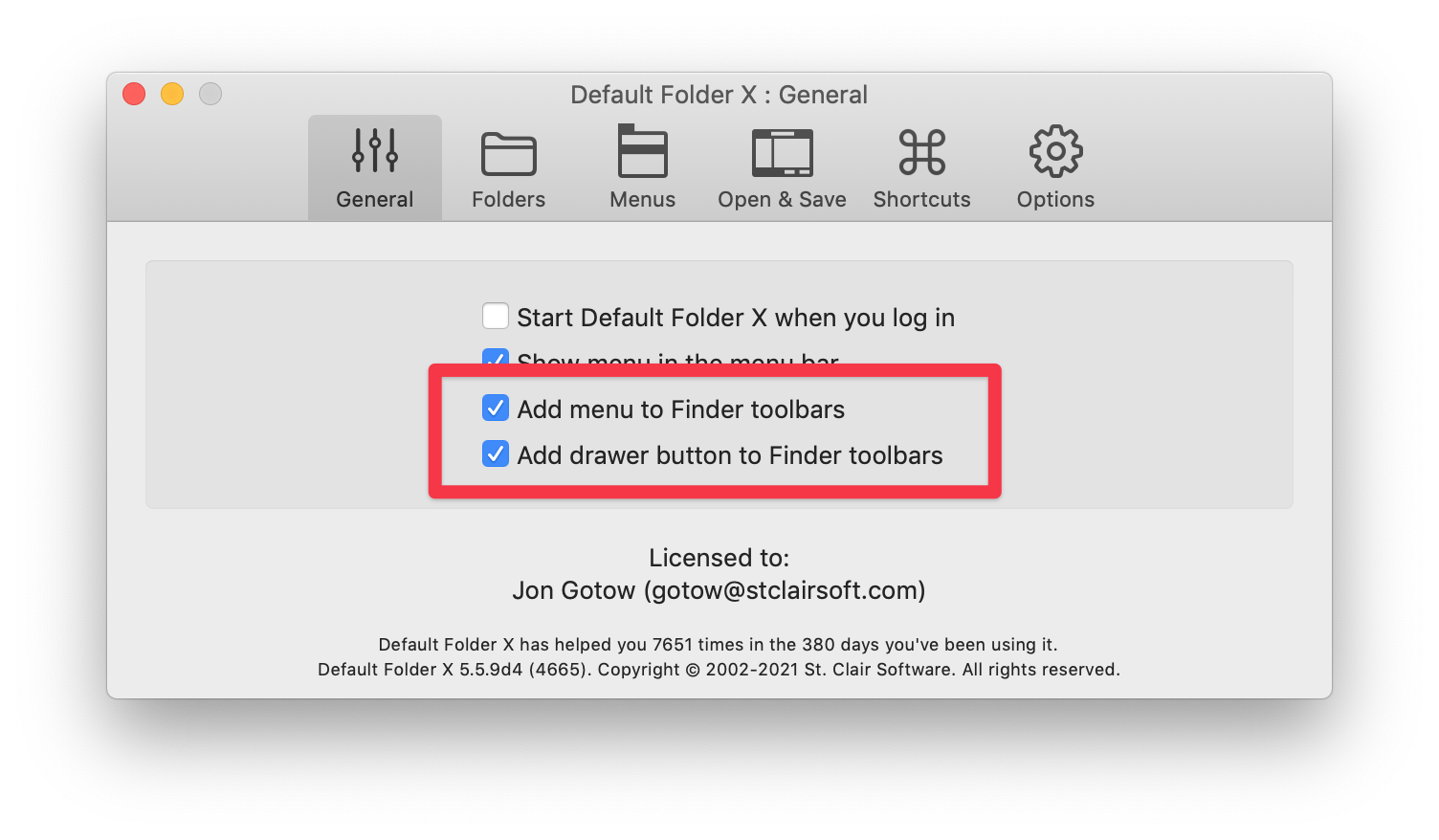
This used to require an inconvenient series of special steps, but as of version 5.5.7, Default Folder X fully supports adding its buttons to Path Finder's toolbar. Just turn on the checkboxes in the General tab of your Default Folder X preferences to add the buttons to the Finder's toolbar and they'll also be added to Path Finder's.
How can I back up my Default Folder X settings or copy them to a new Mac?
Default Folder X keeps its settings in its preference file at:
~/Library/Preferences/com.stclairsoft.DefaultFolderX5.plist
and in the folder located here:
~/Library/Application Support/com.stclairsoft.DefaultFolderX5/
HINT: You can go directly to these locations in the Finder by selecting "Go to Folder" from the "Go" menu (or by hitting Command-Shift-G on your keyboard) and then entering the file paths given above.
How do I uninstall Default Folder X?
Version 4.x:
Run the Default Folder X 4 installer and click on the Uninstall button. If you no longer have the installer, you can download it here
Alternately, you can just remove these files (HOME refers to your home folder):
HOME/Library/PreferencePanes/Default Folder X.prefPane
/Library/PreferencePanes/Default Folder X.prefPane
/Library/ScriptingAdditions/Default Folder X Addition.osax
Version 5.x and 6.x:
Just quit the Default Folder X application and move it to the Trash.
If you added Default Folder X's buttons to your Finder toolbars and they're now displayed as question marks, you can remove them by holding down the Command key on your keyboard and dragging them out of the toolbar.
Default Folder X Compatibility
Does Default Folder X run natively on M-series Macs?
Yes, Default Folder X version 5.5 or higher is a universal app, running natively on both Intel and Apple Silicon powered Macs.
Is Default Folder X compatible with Sequoia (macOS 15)?
Default Folder X 6.1 or higher is compatible with macOS 15 Sequoia. If you're running an earlier version of Default Folder X, please update to the latest version by choosing "Check for Updates" from Default Folder X's menu in your menu bar, or by clicking the "Download" button above.
What version of Default Folder X do I need?
For macOS 15 (Sequoia), macOS 14 (Sonoma), 13 (Ventura), 12 (Monterey), 11 (Big Sur), 10.15 (Catalina), 10.14 (Mojave) and 10.13 (High Sierra) use Default Folder X 6.1.5.
On macOS 13 (Ventura), 12 (Monterey), 11 (Big Sur), 10.15 (Catalina), 10.14 (Mojave) and 10.13 (High Sierra) you can also run the older Default Folder X 5.7.8.
For macOS 10.12 (Sierra) and 10.11 (El Capitan), use Default Folder X 5.6.6.
For macOS 10.10 (Yosemite), 10.9 (Mavericks), 10.8 (Mountain Lion), 10.7 (Lion) and 10.6 (Snow Leopard) use Default Folder X 4.7.4.
If you are still using Mac OS 10.5, have a PowerPC Mac or run PowerPC applications in Mac OS 10.6 using Rosetta, you'll need to download Default Folder X 4.5.12.
If you've got a really, really old Mac, you can still download Default Folder X 4.3.10 to run on Mac OS 10.4 (Tiger).
Note that we no longer officially support releases of Default Folder X prior to version 6, but they work just fine on older versions of macOS.
Are there any applications that are incompatible with Default Folder X?
Not that we're aware of. If you run into any sort of trouble, please contact us through the Support Page.
Troubleshooting
I get this reminder every time I use an Open or Save dialog.
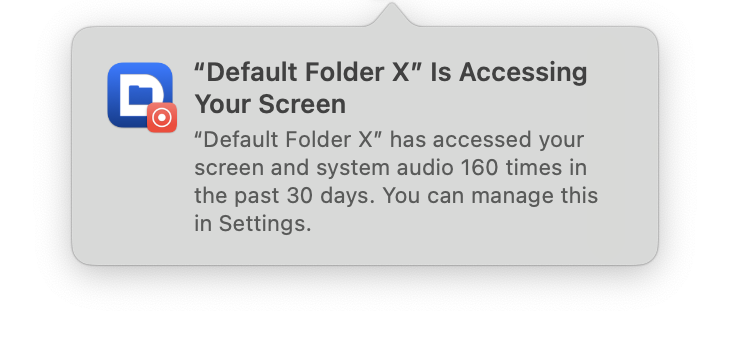
Seqoia's screen recording reminder system has somehow gotten out of whack on your system. The instructions below should fix it, providing you're running macOS Sequoia 15.4 or higher and have Default Folder X installed in your Applications folder:
- Launch the Terminal application (it's in /Applications/Utilities)
- Paste in the following two commands, hitting the Return key on your keyboard after each one. Note that the first command should be all one line, even though it may be wrapped to multiple lines below:
defaults write ~/Library/Group\ Containers/group.com.apple.replayd/ScreenCaptureApprovals.plist com.stclairsoft.DefaultFolderX5 -dict-add kScreenCapturePrivacyHintPolicy 7776000 kScreenCapturePrivacyHintDate -date 2035-12-31
/usr/bin/killall -HUP replayd
- That should do the trick. If it doesn't, contact us at support@stclairsoft.com for additional help.
NOTE: If you're running the Setapp version of Default Folder X, you'll need to use 'com.stclairsoft.DefaultFolderX5-setapp' in place of 'com.stclairsoft.DefaultFolderX5' in the first command above.
Default Folder X is taking a long time to switch to a new folder after I select one, or isn't switching at all.
This is usually the result of corruption in your system's privacy database. You can often fix the problem by resetting Default Folder X's entries in the privacy database and then relaunching Default Folder X. To do this, please follow these steps:
- Run the Terminal application (it's in /Applications/Utilities)
- Paste in these commands, hitting the Return key on your keyboard after each one:
sudo tccutil reset Accessibility com.stclairsoft.DefaultFolderX5
sudo tccutil reset AppleEvents com.stclairsoft.DefaultFolderX5
sudo tccutil reset SystemPolicyAllFiles com.stclairsoft.DefaultFolderX5
sudo tccutil reset ScreenCapture com.stclairsoft.DefaultFolderX5
You'll be prompted for your administrator password in order to run the first command. Type that in (there will be no indication that your input is going in - just keep typing), then hit Return again. Subsequent commands will not require your password if they're entered within a minute or two after entering the first.
- If the commands complete successfully, immediately restart your Mac. If they give you some sort of error or "could not reset" message, contact us at support@stclairsoft.com for additional help.
The next time you launch Default Folder X, it'll go through its prompts to have you grant it permissions for Accessibility, Full Disk Access, etc. Once you've done that, test to see if the misbehavior has stopped.
NOTE: If you're running the Setapp version of Default Folder X, you'll need to use 'com.stclairsoft.DefaultFolderX5-setapp' in place of 'com.stclairsoft.DefaultFolderX5' in the commands above.
When I click on Default Folder X's controls in an Open or Save dialog, they disappear.
You're probably running an app called BetterMouse that gives you additional options for your
mouse or trackpad. One of its features, "click-through", changes the system's window activation
behavior and makes Default Folder X think that the file dialog is no longer active. That causes
it to hide all of its controls.
To fix the problem, open your BetterMouse settings, click on the "Buttons" tab, and turn off "Left click-through".
Default Folder X keeps adding items to its Recent Folders and Recent Files menus that I haven't opened.
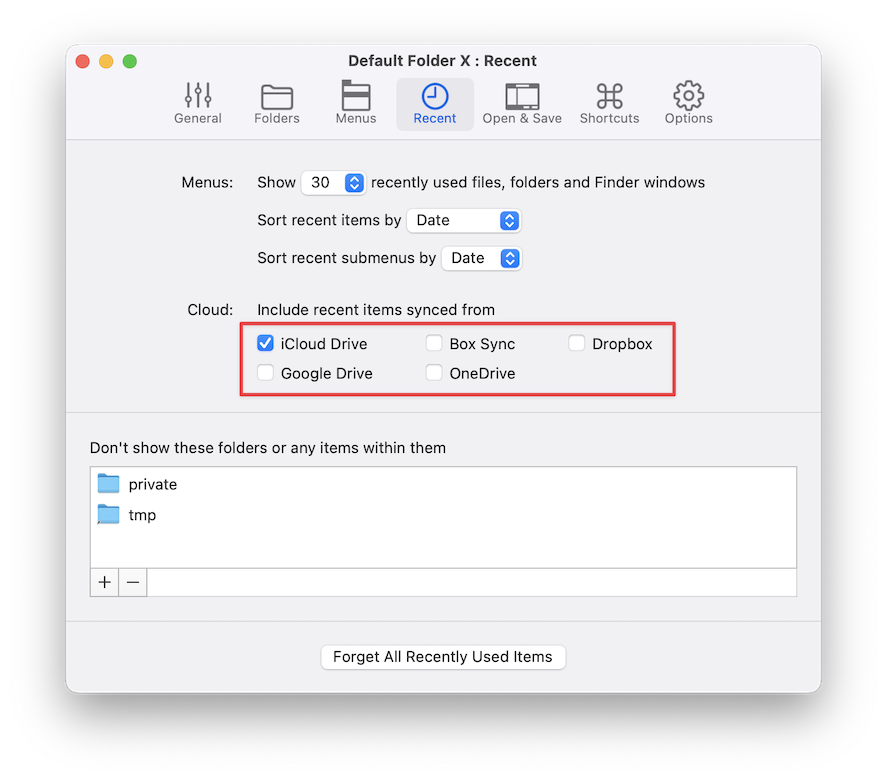
Default Folder X automatically watches any cloud-synced folders (like iCloud, Dropbox, OneDrive, Google Drive and Box) and adds new items that appear there to its "recent" lists. This works great for people that are modifying their own files on multiple machines, but if you share a cloud-synced folder to collaborate with friends or coworkers, you'll end up with all of their changes populating your Recent Folders and Recent Files menus.
To disable this feature, go to Default Folder X > Preferences > Recent and turn off the checkboxes for the various cloud sync services.
Default Folder X's Finder-click feature isn't showing all of my Finder windows.
Default Folder X's Finder-click feature doesn't show windows that aren't actually visible on-screen. So if the Finder is hidden or if the windows you're looking for are in other desktop spaces, they'll appear in Default Folder X's Finder Windows menu, but won't automatically highlight as you move the mouse around on the screen.
If you'd like it to show all windows, even when they're in other Spaces or when the Finder is hidden, do the following: Hold down the Option key and choose Preferences from Default Folder X's menu in your menubar. In the "Additional Settings" sheet that appears, turn on "Finder-click shows windows from all Spaces", then click OK.
Also, please note that the Finder-click feature doesn't support Smart Folders (including Recents and All My Files) or search results. These windows don't have a "location" - the files listed there are in various folders and are just listed together as the result of a search. So when you click on that window, there's nowhere for Default Folder X to "go." It doesn't show those windows as being "clickable" because there's nothing it can logically do with them.
The buttons at the bottom of a file dialog are below the bottom of my screen so I can't click on them.
This isn't really a problem with Default Folder X, but an issue with the system not correctly remembering the size for the dialog.
To resize the dialog, hold down the Shift key and click on any edge of the file dialog with the mouse (click on the edge of the actual dialog, not the edge of Default Folder X's bezel around it), then drag toward the center of the dialog. This should resize the dialog in all dimensions, even if parts of it are offscreen. Once you've resized the dialog, macOS should remember that size and use it for future invocations of the same dialog in the same app. Note that dialog sizes are remembered per-application, so if you're having this problem in more than one application, you'll have to resize the dialogs separately in each app.
If the system doesn't correctly remember the sizes of your file dialogs after you've resized them (which it doesn't sometimes if things get out of whack), you can override the sizes with Default Folder X and force them back to what you've set. To do that, hold down the Option key and choose Preferences from Default Folder X's menu in your menubar. In the "additional settings" sheet that appears, turn on "Remember file dialog sizes", then click OK.
Default Folder X keeps telling me it needs authorization to allow Accessibility, but I've already turned on the checkbox in System Preferences.
We're unfortunately seeing this problem with increasing frequency. It happens when the system's privacy database gets corrupted. To fix the problem, you need to reset the Accessibility portion of the database. To do that, follow these steps:
Default Folder X's controls have stopped appearing in Open and Save dialogs. What's wrong?
We've seen problems in Adobe Creative Suite and Microsoft Office 365 apps immediately after they've been updated by their respective auto-update mechanisms. It appears that
the updaters relaunch the apps in such a way that macOS doesn't send a "this application just launched" notification to Default Folder X. That prevents DFX from seeing
the file dialogs when they appear.
To fix this, just quit and relaunch the application in which you're not seeing Default Folder X's controls.
When an Open or Save dialog appears, my entire screen turns gray. How do I stop this?
What you're seeing is part of Default Folder X's "Finder-click" feature.
Whenever you move the mouse over a Finder window, Default Folder X draws a gray shadow over the window. This shows you that clicking on the window will switch to that folder in the file dialog.
There's an option in your Default Folder X preferences called "Choose the Desktop when you click on it." This makes Default Folder X treat the entire screen as a window showing the Desktop, so it grays out the entire screen to show you that clicking there will do something. Turning off this option will stop the screen from turning gray. Alternately, you can turn off "Highlight Finder windows when you mouse over them" if you prefer to keep the behavior but don't want the visual effect.
|